Conversion signals are a special type of Automation Rule within CallRail's Premium Conversation Intelligence product that automatically detects your conversation outcomes. These signals use CallRail's generated transcripts and artificial intelligence to determine if an action occurs during calls, texts, and forms that results in a lead converting. Conversion signals are divided into categories based on the result of the call:
- Schedule status (analyzes phone calls)
- The caller books an appointment
- The caller requests an appointment
- The caller does not book an appointment
- The caller reschedules an appointment
- Lead Score (analyzes phone calls, text messages, and form submissions)
- Very good
- Good
- Fair
- Poor
- Very Poor
- Sale outcome
- Sale made
- Sale not made
Once a conversion signal is detected, you can then have tags, monetary values, and lead qualifications automatically applied to the call.
Please note: Conversion signals are also not available in CallRail's API.
Using Conversion Signal templates
Conversion Signals are available as pre-created templates, making setup seamless in your account.
- Navigate to Settings > Workflow > Automation Rules.
- You will see both templates available at the top of the screen, one for Schedule Status and one for Lead Score.
- Hover over the template’s box, and select the desired conversion signal from the drop-down menu.
- The Schedule Status template three options: Booked, Not Booked, and Requested.
- The Lead Score template has two options: Good (enabling the very good and good signals) and Poor (enabling the very poor and poor conversions)
- The Sale outcome template has two options: Sale made and Sale not made.
- Once selected, you will be redirected to a new screen. Select the company in your account to which you would like to apply the template, or select the account-level option. Theme select Rule Paramenters.
- This screen will be automatically filled out based on the template. Select Apply Template.
The Conversion Signal will now be active in your chosen company or account!
Creating a Conversion Signal
Follow these instructions to create a Conversion Signal. You can create a custom Rule or use one of our five templates as a starting point.
Please note: only administrators and managers can create and edit Automation Rules, including Conversion Signals.
- Click the Settings icon on the left navigation bar.
- Choose the company where you'd like to create an Automation Rule.
- Click Workflow at the top of the page.
- Choose Automation rules from the Automation header on the left.
- Click the Custom Rule box to build a rule from scratch. Otherwise, choose one of the Conversion Signals templates as a starting point.
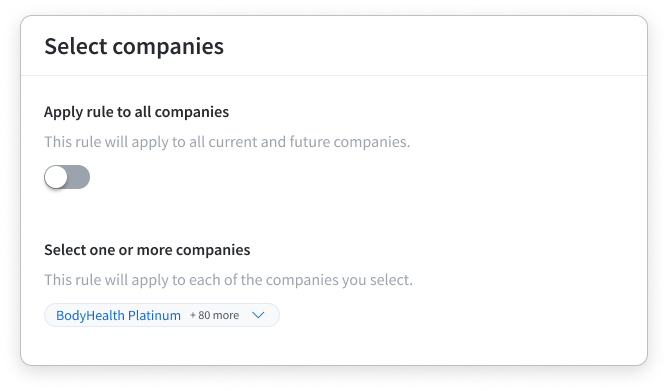
- Choose if you want the rule to apply to a certain company or to all current and future companies within your account, then click Rule parameters.
- Choose Conversion Signals
- Enter the specific signal you want to target using the larger panel on the right.
-
Choose an action using the Classification tab in the bottom left. This lets us know how to classify the interactions that meet your criteria.
You can tag an interaction, score an interaction as qualified or non-qualified, or assign a monetary value to an interaction.
- Name your rule.
- Once the rule is active, any interaction that meets the criteria you choose will be automatically classified based on your action.
Managing Conversion Signals
Follow these instructions to manage your Conversion Signals. Administrators and managers can create and edit Conversion Signals.
- Click the Settings icon on the left navigation bar.
- Choose the company where you'd like to edit Automation Rules.
- Click Workflow at the top of the page.
- Choose Automation rules from the Automation header on the left.
- Scroll past the templates to your list of Automation Rules.
- Use the company dropdown on the right to choose which company's Automation Rules you'd like to view.
- Use the icons on the right side of each row to manage your rules that contain Conversion Signals. Click the pencil icon to edit, the double square icon to duplicate a rule, and the trashcan icon to delete a rule.
FAQs
What languages can Conversion Signals identify?
Conversion Signals only understands standard English words that can be found in a dictionary. For example, a proper noun like "CallRail" or your business's name may not be recognized by the system.
Can you apply Conversion Signals to past calls after I've set up a new Rule?
Conversion Signals will begin working on all calls and/or forms received from the time the Rule is activated and going forward. It won't work for calls that occurred prior to turning on this feature. If you deactivate a signal but don't delete it, the signal will not apply to interactions until you reactivate it.